Stream layout starting points
Bongo Cat Overlay Templates for OBS and TikTok LIVE
Start with a scene goal instead of guessing at settings. These six Bongo Cat overlay templates pair a character, input style, placement, and use case so you can choose a practical direction before opening your broadcast software.
How to use this collection
Choose by content, then tune the scene
A useful overlay template is more than a color preset. It should answer four questions: which input needs to be visible, how much space the stream can spare, where the overlay can sit without hiding important content, and which character supports the scene palette. The recommendations below are starting configurations for Overlay Cat Desktop rather than downloadable OBS scene files.
Select the named character and style in Overlay Cat, connect the local source to OBS Studio or TikTok LIVE Studio, then scale and position it for your own canvas. Scene dimensions, safe zones, game HUDs, captions, and camera placement vary, so every template still needs a final visual test.
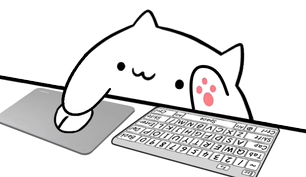 Template 01
Full keyboard + mouse
Desktop Tutorial
- Character
- Bongo Cat
- Style
- Mouse + Full
- Placement
- Below a screen capture or beside a desk camera in a 16:9 scene.
- Best for
- Coding, design, productivity, music software, and step-by-step demonstrations.
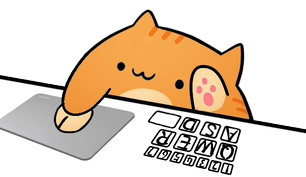 Template 02
Focused keys + mouse
Compact Gameplay
- Character
- Marmalade Cat
- Style
- Mouse + Compact
- Placement
- A lower corner that does not cover HUD, subtitles, minimap, or alerts.
- Best for
- Action games, speedruns, challenge runs, and mouse-led gameplay.
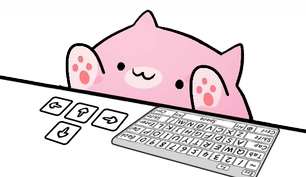 Template 03
Arrow keys + full keyboard
Direction Focus
- Character
- Sakura Cat
- Style
- Arrows + Full
- Placement
- Centered below gameplay when direction and shortcut context both matter.
- Best for
- Rhythm games, platformers, navigation lessons, and keyboard-controlled creative tools.
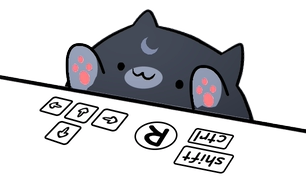 Template 04
Arrow keys + compact keyboard
Vertical Live
- Character
- Luna Cat
- Style
- Arrows + Compact
- Placement
- Above the lower caption zone in a vertical TikTok LIVE or short-form frame.
- Best for
- TikTok LIVE, vertical game clips, mobile-first tutorials, and narrow layouts.
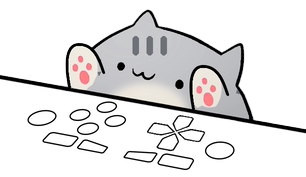 Template 05
Gamepad reactions
Controller Corner
- Character
- Misty Cat
- Style
- Gamepad
- Placement
- Near gameplay while keeping controller motion separate from face camera and chat.
- Best for
- Console capture, controller PC games, racing, fighting games, and action adventures.
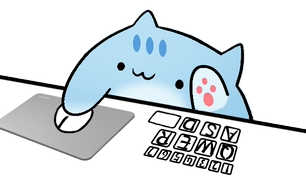 Template 06
Compact keyboard + mouse
Clean Workshop
- Character
- Sky Cat
- Style
- Mouse + Compact
- Placement
- Alongside speaker camera or slides with enough contrast against the background.
- Best for
- Webinars, workshops, live classes, product walkthroughs, and recorded lessons.
Template decisions
Full keyboard or compact keyboard?
Use a full keyboard when viewers need to understand a wide range of shortcuts, modifiers, or letter keys. This usually applies to coding, editing, design, production software, and detailed desktop demonstrations. The larger visual deserves a deliberate place in a landscape scene, often below the captured application or inside a dedicated side column.
Use a compact keyboard when the stream needs only a focused control set or when the overlay must share a small frame with gameplay, chat, captions, and camera. Compact templates are especially useful for TikTok LIVE and vertical video. Test the final output at phone size: a layout that looks spacious on a monitor can become crowded on a mobile feed.
Input choice
Mouse, arrow keys, or gamepad?
Mouse styles make sense when clicking and pointer movement are part of the story. They support design streams, productivity walkthroughs, browsing, strategy games, and software tutorials. Arrow-key styles prioritize direction and suit platformers, rhythm games, menu navigation, or educational content where movement is the key signal.
A controller stream should use the gamepad template. Viewers recognize face buttons, triggers, directional input, and stick movement differently from keyboard keys. Matching the visual model to the actual device reduces confusion and makes the overlay feel intentional rather than added as decoration.
Visual QA
Test contrast, safe zones, and real input before going live
Place the template over the busiest moment in the scene, not an empty test frame. Confirm that the cat remains readable against light and dark content, that subtitles and alerts do not collide with it, and that the source stays inside the platform's visible safe area. Run a private recording with normal typing, fast clicks, and held inputs to catch scaling or capture problems.
For OBS, the illustrated Bongo Cat Browser Source guide covers the connection and placement workflow. For vertical live video, use the TikTok LIVE Studio guide and check the mobile preview before broadcasting. The input overlay tester can also confirm browser event names before you move into the Desktop workflow.
Apply a template
Choose a character and build the matching stream source
Overlay Cat Desktop includes the six characters and five input-style families used in this collection. Install the app, recreate the suggested pairing, and adapt the source to your scene.