Overlay Cat creator guide
How to Use a Bongo Cat Overlay in OBS Studio
A Bongo Cat overlay can turn keyboard, mouse, arrow-key, and gamepad input into a visible part of your OBS Studio scene. This guide shows how to connect Overlay Cat Desktop to an OBS Browser Source, preserve transparency, size the overlay correctly, and fix the most common setup problems.
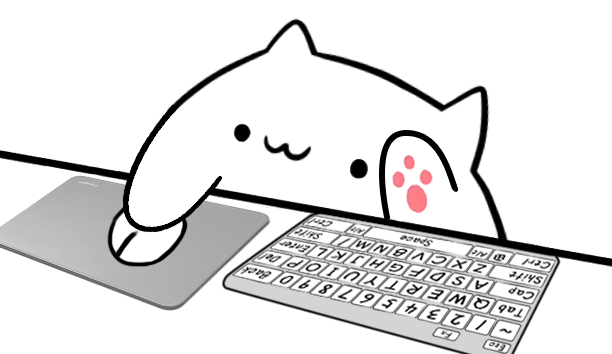
Quick answer
How do you add a Bongo Cat overlay to OBS?
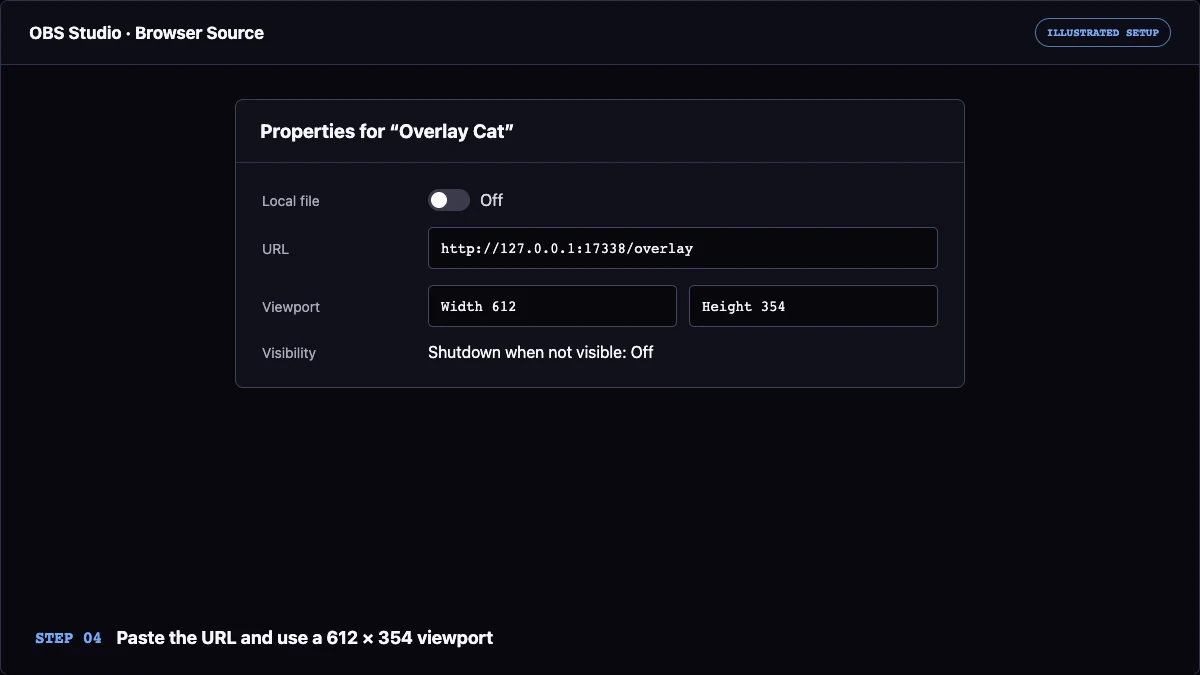
Run Overlay Cat Desktop, choose a character and input style, then copy the Browser Source URL shown by the app. In OBS Studio, add a Browser source, leave Local file turned off, paste the local URL, and set the viewport to 612 x 354or another size with the same aspect ratio. Keep Overlay Cat Desktop running while OBS is open; the app supplies the local overlay page and system-level input events.
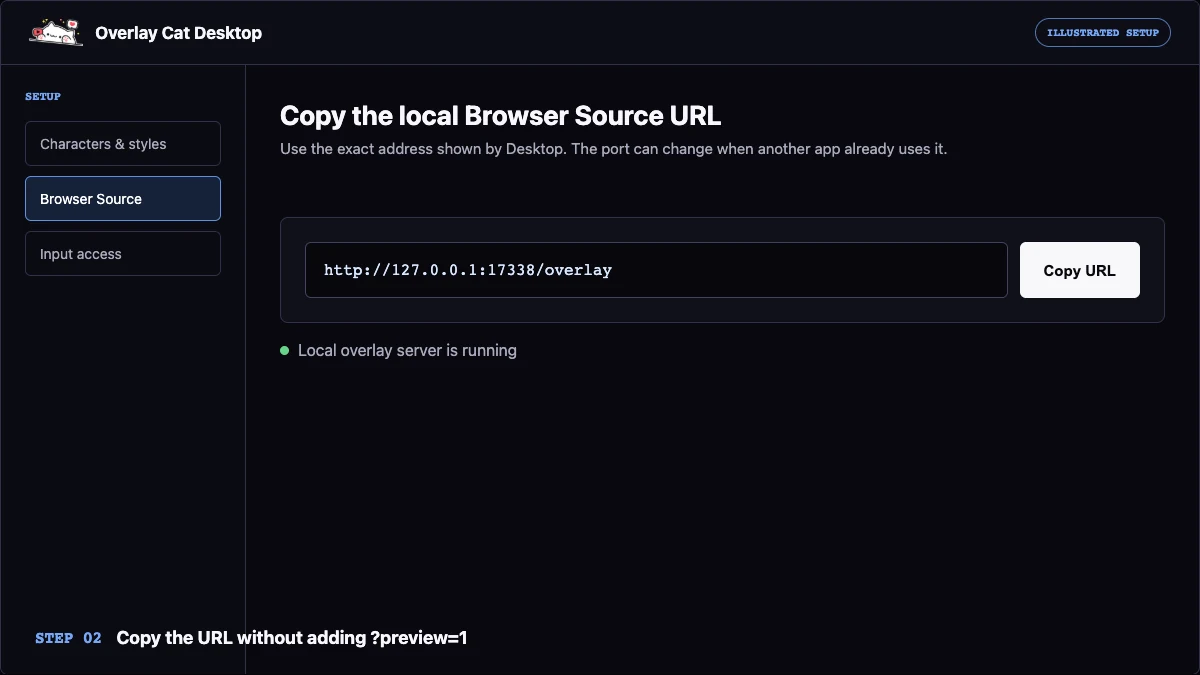
It normally begins with http://127.0.0.1:17338/overlay, but Overlay Cat can choose another local port when that port is already in use. Do not add ?preview=1; that query is only for the checkerboard preview inside the Desktop app.
Preparation
What you need before opening OBS Studio
You need OBS Studio, Overlay Cat Desktop, and permission for the desktop app to read the input events you want to show. The website demo reacts only while its browser tab has focus. A live OBS scene needs the Desktop app because your game, editor, or presentation will usually own keyboard focus during the broadcast.
- Install a current OBS Studio release from the official OBS website. Browser Source is available in official Windows, macOS, and Linux packages.
- Open Overlay Cat Desktop and check the current platform status on the Overlay Cat download page.
- On macOS, allow Input Monitoring when requested. On Windows, follow the app prompt if your game requires Overlay Cat to run with administrator privileges.
- Choose one of the six characters and a full keyboard, compact keyboard, arrow-key, mouse, or gamepad style. Compare them on the Bongo Cat characters page.
Test the chosen style in Desktop before configuring OBS. Press several supported keys, click the mouse, or move the controller. If the cat responds in Desktop, you have separated input-permission problems from OBS Browser Source problems before the two applications are connected.
Step by step
Set up the Bongo Cat Browser Source in OBS Studio
Choose the character and hardware style
In Overlay Cat Desktop, choose the cat first and the input style second. A full keyboard is useful when shortcuts matter; a compact layout is easier to place in a busy or vertical scene; gamepad mode keeps controller actions legible. The Browser Source follows the active Desktop selection, so you do not need to rebuild the source when you change a cat.
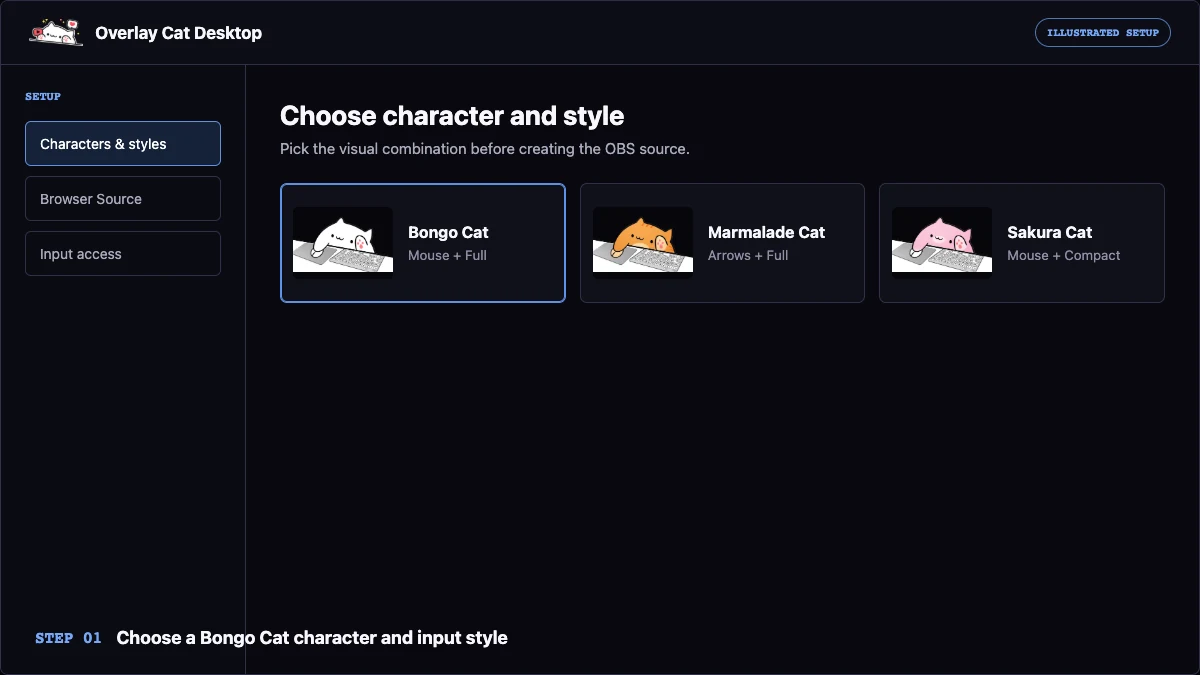
Copy the local Browser Source URL
Find Browser Source URL in Overlay Cat Desktop and use its copy button. The address points to a small local server bound to 127.0.0.1, which means it is available only on your computer. Keep Desktop open: closing it stops the local page and its live event stream.
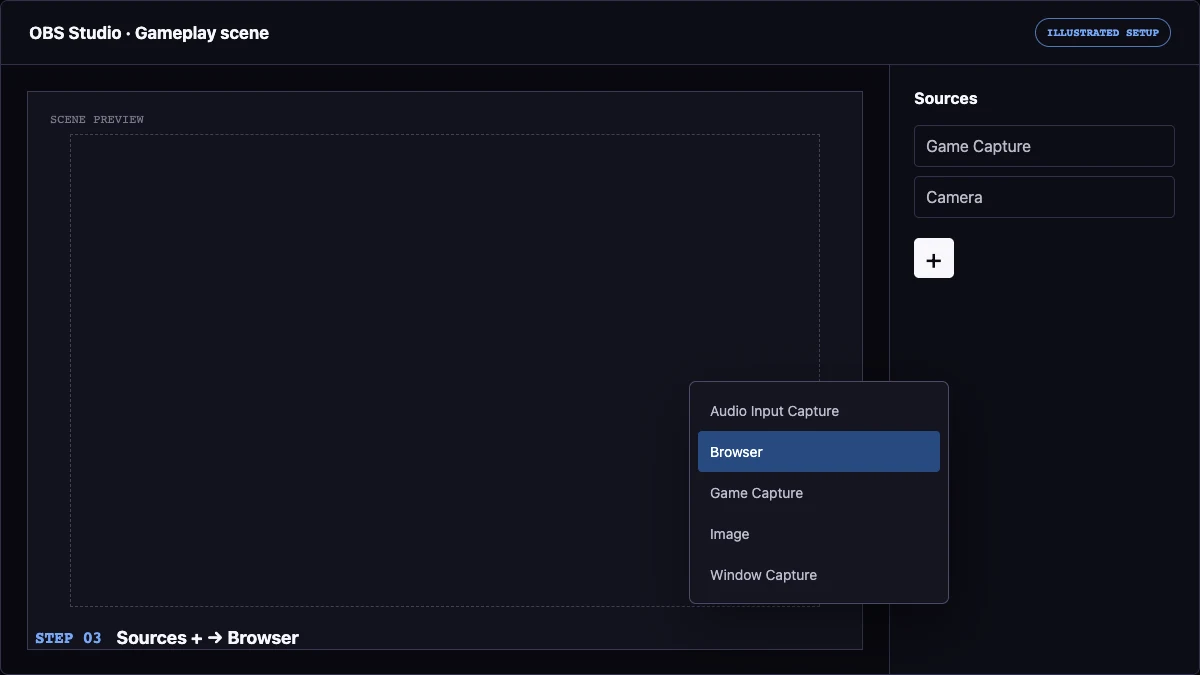
Add a Browser Source to the correct OBS scene
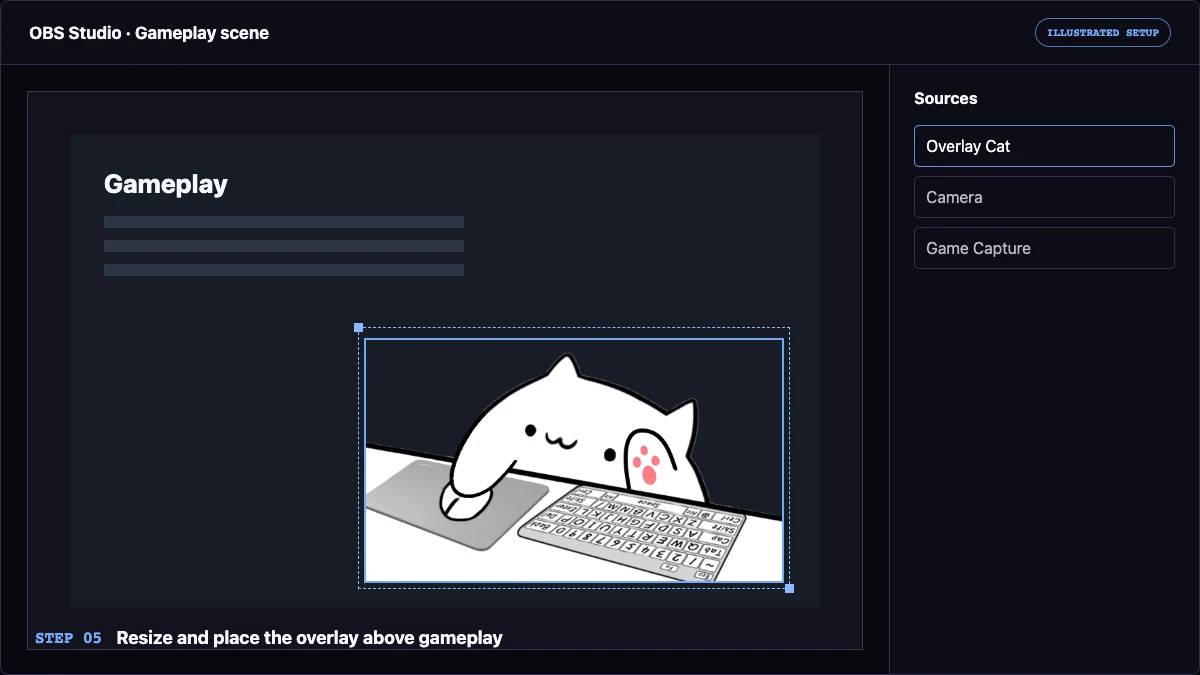
Select the target scene in OBS. In the Sources dock, click the plus button, choose Browser, create a new source, and name it Overlay Cat. OBS sources higher in the Sources list render above sources below them, so place the cat above gameplay or a background that should sit behind it.
Paste the URL and set a matching viewport
Leave Local file off and paste the URL copied from Desktop. Start with a width of 612 and a height of 354. Larger values such as 1224 x 708 preserve the same ratio, but scaling the source in the OBS canvas is usually simpler. Overlay Cat already outputs a transparent page, so the cat can sit directly over gameplay or video. Leave Shutdown source when not visible off when you want the local connection to remain active between scene changes.
Position the overlay and confirm input
Click OK, resize the source from a corner, and place it above gameplay or video. Then focus the application you plan to stream and press supported controls. The Bongo Cat should continue reacting in the OBS preview even though OBS is not focused. If the source returns to a stale frame after changing scenes, enable Refresh browser source when scene becomes active in its properties.
OBS describes Browser Source as an embedded web browser with URL, viewport, custom CSS, refresh, and visibility controls. See the official OBS Browser Source documentation and OBS Sources Guide for the host application controls referenced above.
Scene design
Place the keyboard overlay without covering the stream
Treat the Bongo Cat overlay as an input instrument, not a decorative sticker. It should be large enough for viewers to read the hands and hardware, but it should not cover health bars, captions, code, or the center of a tutorial. Bottom corners often work well for landscape gameplay. A compact style can sit below a webcam, while a full keyboard usually needs a wider uninterrupted edge.
Select the source in OBS and drag its red bounding box to position or resize it. Hold Alt on Windows/Linux or Option on macOS while dragging an edge to crop. Use Edit Transform when you need exact coordinates. Preserve the 612:354 aspect ratio so the cat, keyboard, and mouse do not stretch.
Reuse one source across multiple scenes
OBS sources are global. When another scene needs the same Bongo Cat overlay, add an existing source instead of creating a second Browser Source. Reusing the source keeps its URL and settings together. Scene items can still have different positions and transforms, letting the same input overlay sit beside gameplay in one scene and beside a desk camera in another.
Troubleshooting
Fix a Bongo Cat overlay that is blank, frozen, or not reacting
The Browser Source is blank
Confirm Overlay Cat Desktop is still running, then copy the URL again instead of typing it. Make sure Local file is off. In Browser Source properties, use Refresh cache of current page. If the address changed because another process occupied the original port, replace the old URL with the current one displayed by Desktop.
The cat appears but input does not change it
Return to Desktop and test input there. Review macOS Input Monitoring permission or the Windows administrator prompt, then restart the affected application after changing permissions. Check that your selected style supports the controls you are testing: a gamepad style expects controller input, while compact layouts intentionally expose fewer keys than a full keyboard style.
A checkerboard or solid background appears
The production Browser Source URL should end at /overlay. Remove ?preview=1 if it was copied from a diagnostic preview; that parameter deliberately adds a checkerboard so transparency is visible inside Desktop. OBS applies transparent Browser Source CSS by default, and Overlay Cat also sets its page background to transparent.
The overlay looks stretched or clipped
Reopen source properties and use 612 x 354. In OBS, reset the transform and resize from a corner. If you intentionally cropped the source, green handles indicate the cropped edges. A width and height with a different ratio can distort the full-canvas PNG Sprite layers.
The source stops after switching scenes
Turn off Shutdown source when not visible. If the source still needs a reconnect when the scene becomes active, turn on Refresh browser source when scene becomes active. Avoid running multiple unnecessary copies of the same local Browser Source; reuse the existing source where possible.
Before going live
OBS Bongo Cat overlay checklist
- Overlay Cat Desktop remains open and shows the expected character and style.
- The Browser Source uses the exact current local URL with Local file turned off.
- The viewport uses 612 x 354 or another matching aspect ratio.
- The source background is transparent and no preview query is attached.
- Keyboard, mouse, arrow-key, or gamepad input works while the streamed app has focus.
- The overlay does not cover gameplay UI, captions, chat, or important tutorial content.
- A short local recording confirms the overlay remains smooth during real input.
Build your scene
Choose a Bongo Cat before opening OBS
Test the interactive cat in your browser, compare all character and input-style combinations, then use Desktop to carry the selected reaction layer into a live OBS scene.