Compact layouts
Use focused key, mouse, arrow, or gamepad visuals that fit a phone-sized preview.
Input that fits a vertical frame
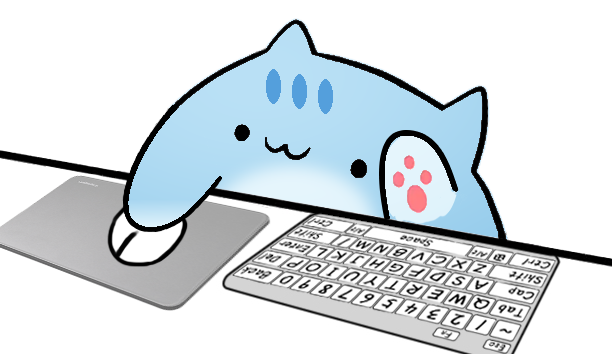
Add a TikTok input overlay to LIVE Studio and vertical clips with a compact Bongo Cat keyboard, mouse, or gamepad reaction layer. Show typing, clicks, and controller actions without letting the overlay crowd captions, chat, or the main video.
Vertical clarity
TikTok LIVE and short clips are built around fast, vertical frames where every source competes for space. A full keyboard overlay can cover too much of the screen. A compact TikTok input overlay keeps the reaction readable while preserving room for the creator, gameplay, captions, chat, and platform interface elements.
Use focused key, mouse, arrow, or gamepad visuals that fit a phone-sized preview.
Place the overlay outside caption areas and interactive LIVE buttons.
Let viewers understand typing, clicking, or controller input without explanation.
LIVE Studio connection
TikTok LIVE Studio supports Link sources for local browser content. Run Overlay Cat Desktop, copy the local URL it displays, then add that URL as a Link source in LIVE Studio. The app supplies the system-level keyboard, mouse, arrow-key, and gamepad events while your game or another application has focus.
Follow the step-by-step Bongo Cat overlay TikTok LIVE Studio guide for exact source properties, placement, and troubleshooting. The production URL should stay at the local overlay address shown by Desktop, without preview-only query parameters.
Scene design
In a vertical layout, place the overlay below the camera or in a quiet corner rather than over the creator's face, captions, or interactive LIVE elements. Test on a phone-sized preview because desktop monitor scale makes small overlays look larger than they will on mobile.
Keep the overlay small enough to be a supporting layer, not the center of the frame. A compact keyboard, arrow, mouse, or gamepad style should communicate the input quickly while leaving room for the content that keeps viewers watching.
Choose by content type
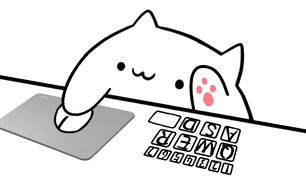
Use compact mouse and keyboard input to show shortcuts and clicks in a narrow frame.
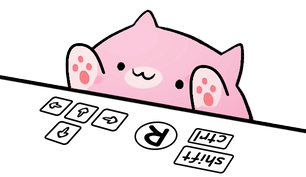
Use arrow or gamepad styles so movement and controller actions stay readable.
Show keyboard or mouse reactions that follow the rhythm of the performance.
Reveal the exact controls behind each move without filling the vertical screen with a full key map.
Six characters, five style families
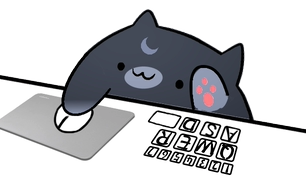
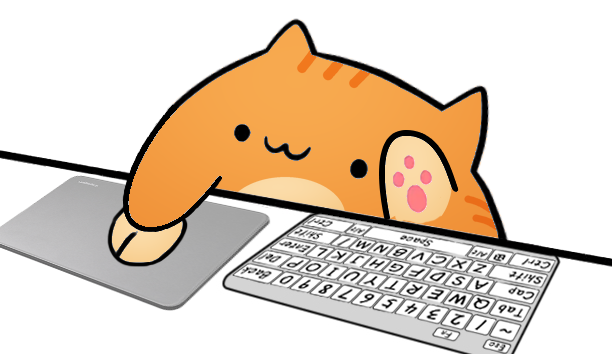
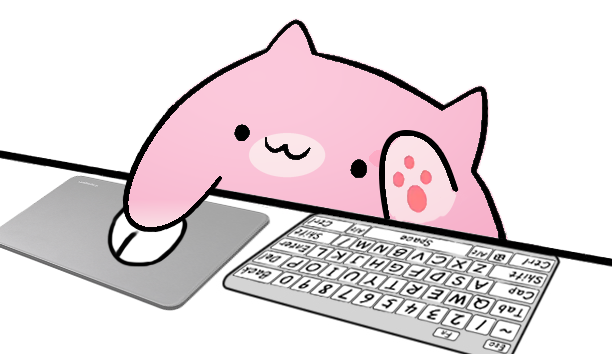
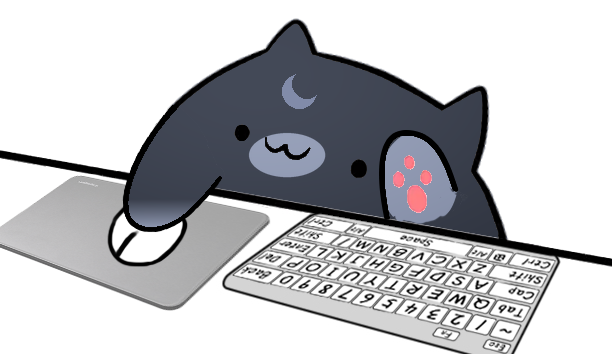
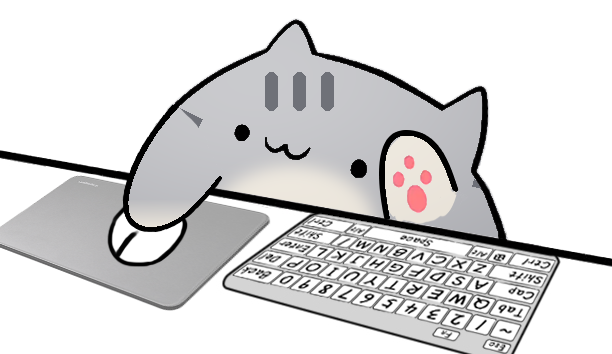
Overlay Cat separates character appearance from input style. You can test Classic Bongo Cat, Marmalade, Sakura, Luna, Misty, and Sky with the same keyboard, mouse, arrow, or gamepad behavior. That makes it easy to match a vertical scene palette without relearning the LIVE Studio setup.
Compare all Bongo Cat characters and styles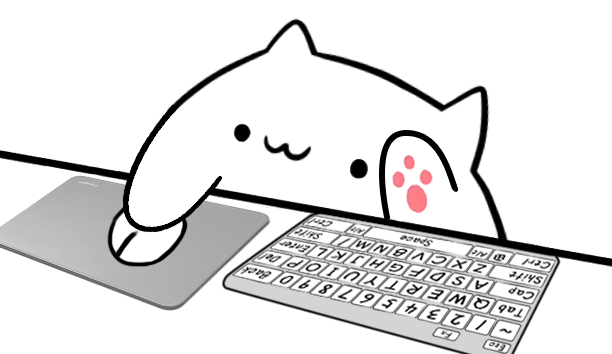
Build a vertical input layer
Use the browser tester for a quick input check or install Overlay Cat Desktop for system-level capture during LIVE.