Overlay Cat creator guide
How to Use a Bongo Cat Overlay in TikTok LIVE Studio
Add a responsive Bongo Cat overlay to a vertical or landscape TikTok LIVE Studio scene. This guide covers the local Link source workflow, scene placement, mobile preview checks, and fixes for common input or transparency problems.
Quick answer
How do you add a Bongo Cat overlay to TikTok LIVE Studio?
Open Overlay Cat Desktop, select a character and input style, and copy the local Browser Source URL. In TikTok LIVE Studio, select the target scene, open Add source, choose Link, and paste the exact local URL. Keep Overlay Cat Desktop running, then resize and position the transparent overlay in the LIVE Studio canvas.
Link must appear in your Add source menu before you can follow these steps. If it is missing, check that LIVE Studio is current and that the feature is available to your account.
Preparation
Prepare Overlay Cat Desktop and your TikTok LIVE scene
The browser preview on overlaycat.com is useful for trying characters, but a live scene normally needs system-level keyboard and mouse capture while a game or another application has focus. That is the job of Overlay Cat Desktop. Check the current installers on the download page, then keep Desktop open for the entire LIVE.
- Confirm that your TikTok account can use LIVE Studio and that your current installation can add Link sources. TikTok controls LIVE access and feature availability.
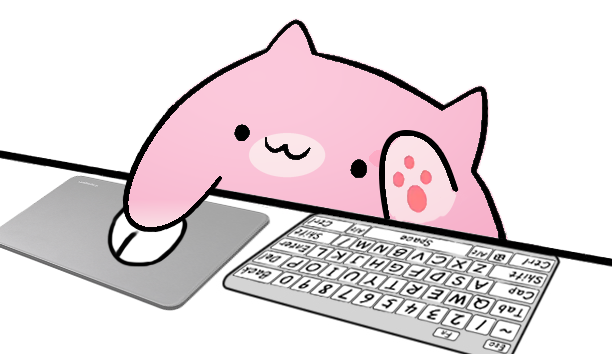
- In Desktop, compare the six Bongo Cat characters and input styles. A compact keyboard or arrow-key layout usually occupies less of a 9:16 scene.
- Press keys and mouse buttons while another application is focused. Resolve input permission prompts before connecting the overlay to LIVE Studio.
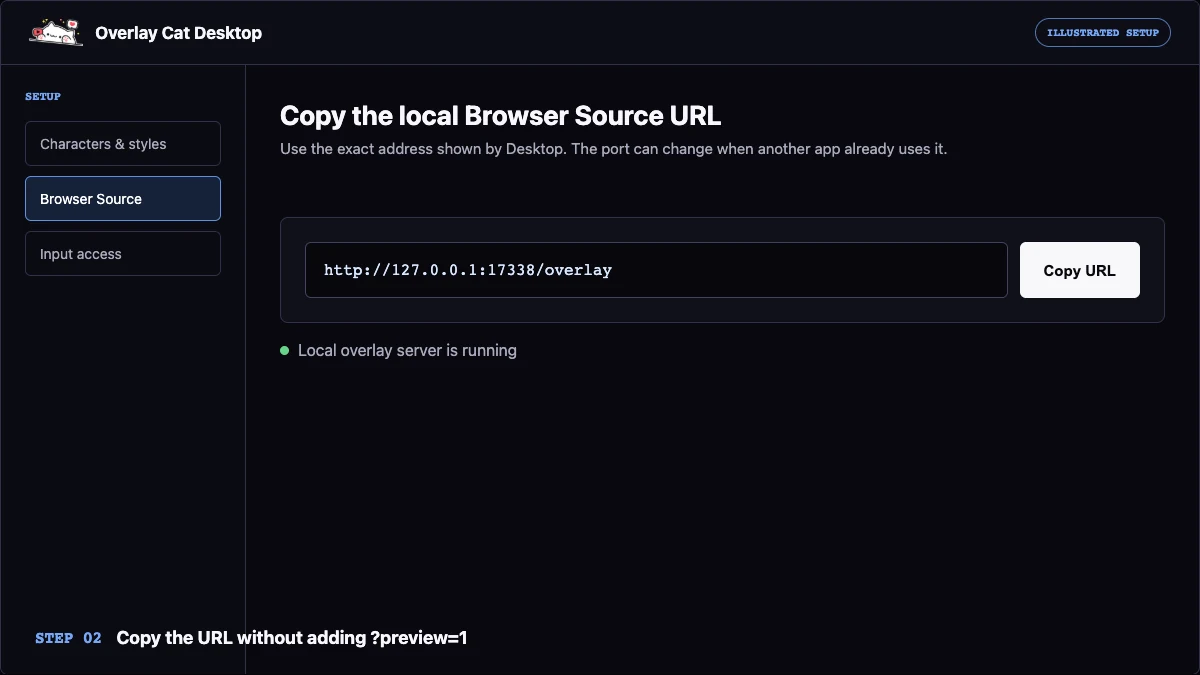
- Copy the exact URL displayed by Desktop. It normally uses a private loopback address beginning with
http://127.0.0.1, and the port can change when another local app uses it.
Step by step
Add Overlay Cat with a TikTok LIVE Studio Link source
Start with the scene that will contain the Bongo Cat overlay. Open Add source, choose Link, and paste the local URL from Desktop without adding ?preview=1. The preview parameter deliberately adds a checkerboard for diagnostics; the clean overlay URL is transparent and is the one intended for a live composition.
- Keep Overlay Cat Desktop running and confirm that the cat reacts in its own preview.
- Select the target LIVE Studio scene, choose Add source, and select Link.
- Paste the current local URL and wait for the cat, hands, and hardware layers to appear.
- Resize from a corner so the 612:354 composition keeps its original proportions.
- Move the source above the game, screen share, or background source in the layer order.
Focus the game or application you intend to show and test the controls again. A working Bongo Cat overlay should react even while LIVE Studio is in the background. If it reacts only when Desktop is focused, return to the app and review its input-access status.
TikTok documents scene sources and preview tools in the official LIVE Studio Help Center. Because menus can change, use the options visible in your installed build as the final authority.
Scene design
Fit a Bongo Cat input overlay into a vertical TikTok LIVE
A vertical frame has less horizontal room than a landscape gameplay scene. Start with a compact keyboard, arrow-key, or gamepad style when the full keyboard becomes too small to read. Place the cat near a lower corner, but leave room for captions, comments, gifts, controls, and any game UI that TikTok or your content places near the screen edges.
Readability matters more than displaying every key. Viewers should immediately understand that the character reacts to real input. Keep the paws and active controls large enough to recognize on a phone, preserve the original aspect ratio, and avoid stretching the cat to fill unused space. A simple scene with clear hierarchy usually performs better than several small overlays competing for attention.
Check the phone view before starting the LIVE
Use LIVE Studio's mobile preview or scan its preview QR code when that option is shown. Look at the scene from normal phone distance, not only on a desktop monitor. Confirm that the overlay remains legible, does not sit under interface controls, and still reacts during fast gameplay input.
TikTok explains the mobile preview workflow in its official video and audio preview guide.
Troubleshooting
Fix a Bongo Cat overlay that is missing or not reacting
There is no Link option in Add source
Update TikTok LIVE Studio and confirm that Link sources are available to your account. If the Link option is still absent, the current build or account cannot use this Link source setup.
The direct source is blank
Keep Overlay Cat Desktop open and copy its current URL again. A local URL works only on the same computer, Overlay Cat Desktop must keep its server running, and the port may differ from an earlier session. Remove spaces and any ?preview=1 suffix.
The cat appears but keyboard or mouse input does not react
Test input in Desktop first. Review macOS Input Monitoring or the Windows permission prompt, then restart the affected application after changing permissions. Confirm that the selected style supports the control you are pressing: a gamepad style expects controller input, while compact keyboard styles intentionally show fewer keys.
The overlay works but viewers cannot hear the game or microphone
Configure audio sources separately in LIVE Studio. The Overlay Cat Link source contains the visual input overlay; it does not carry microphone, desktop, or application audio.
Before going LIVE
TikTok LIVE Studio Bongo Cat overlay checklist
- Overlay Cat Desktop is open with the intended character and input style.
- The cat reacts while the game or streamed application has focus.
- The Link source uses the exact current local URL displayed by Overlay Cat Desktop.
- The overlay remains proportional and readable in a phone-sized preview.
- Comments, captions, gifts, controls, and important game UI are not covered.
- Microphone and program audio are configured separately and meters are moving.
- A short preview confirms both the Bongo Cat animation and the final scene layout.
Prepare your LIVE
Try the Bongo Cat overlay before opening LIVE Studio
Test character reactions in the homepage demo, compare the available hardware styles, then use Desktop to carry the selected input overlay into your TikTok LIVE scene.