Keyboard and shortcuts
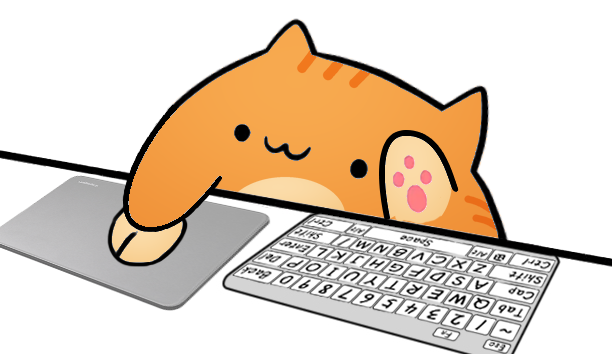
Show full or compact keyboard activity through a character reaction instead of a dense wall of key labels.
Local Browser Source for streamers
Turn real keyboard, mouse, arrow-key, and gamepad actions into a reactive Bongo Cat layer for OBS Studio. Overlay Cat Desktop captures supported input locally and gives your scene a clean, memorable visual instead of another technical panel.
Made for readable action
Gameplay and screen capture show the result of an action, but they often hide the input that caused it. A visible reaction layer gives viewers that missing context without forcing the creator to narrate every shortcut or click.
Show full or compact keyboard activity through a character reaction instead of a dense wall of key labels.
Make left and right clicks visible during software demonstrations, creative work, and click-heavy game moments.
Choose focused input styles for directional games or controller-led streams without redesigning the whole scene.
No separate OBS plugin required
Overlay Cat runs as a desktop application and exposes a local visual source. In OBS Studio, add a Browser Source to the chosen scene and paste the URL supplied by the app. The browser layer is the picture; the Desktop app remains responsible for input capture, character selection, and style.
This separation keeps the stream setup understandable. You do not install an input-capture plugin into OBS, edit texture maps, or maintain a custom configuration file for every scene. The source can be resized and positioned like other OBS elements, while changes to the cat stay in Overlay Cat.
Follow the illustrated OBS Browser Source steps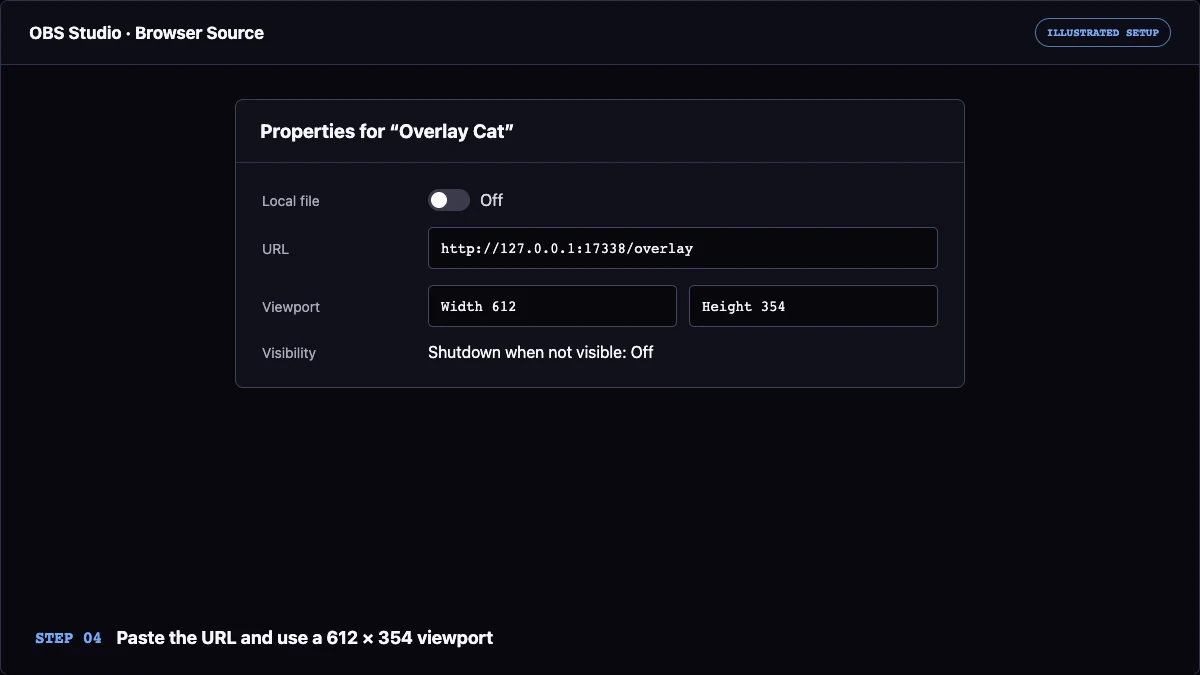
Choose the right scene footprint
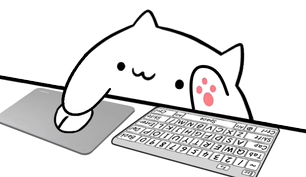
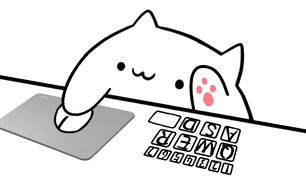
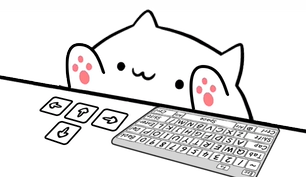
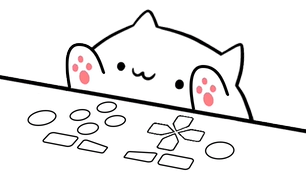
A full keyboard style works well for tutorials and desktop demonstrations where broad shortcut context matters. Compact styles reserve more of the frame for gameplay or camera. Arrow-key layouts make directional action easier to read, and the gamepad style keeps controller streams visually coherent. Six characters share the same five input-style families, so appearance and function can be chosen independently.
A practical workflow
Treat the first setup as a scene test rather than a permanent design. Build the source, record a normal minute of gameplay or desktop work, then review the recording at the same size viewers will see. This exposes unreadable scaling, source-order mistakes, input lag, and collisions with alerts more reliably than an empty OBS canvas.
Choose the current macOS, Windows, or Linux package from the download page and launch the app locally.
Match the scene mood, then decide whether full keyboard, compact keyboard, arrows, mouse, or gamepad communicates the action best.
Keep Overlay Cat running and copy the Browser Source link generated by the Desktop application.
Place the source above gameplay or screen capture, test transparency and input, then save the scene collection.
Visible keyboard input can reveal more than the application on screen. Add a source toggle or a private scene before the broadcast and use it whenever you enter passwords, recovery codes, API keys, payment details, or private messages. A password field may hide characters in the captured app while an input visualization still exposes the physical key sequence. Test the privacy switch along with the overlay so hiding it becomes part of the normal workflow.
Ready for a scene test?
Start with the Desktop app, then use the detailed guide to connect the local visual to OBS Studio.