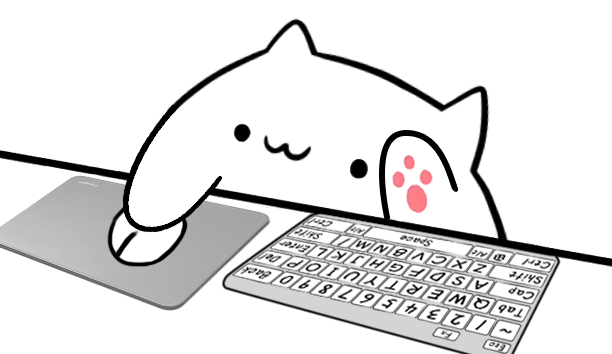
For streamers who found the Steam cat
Bongo Cat Steam Alternative for Streamers
The Bongo Cat game on Steam is a desktop companion built around key presses, points, hats, and collecting. Overlay Cat serves a different need: it turns your real keyboard, mouse, arrow-key, and gamepad input into a Bongo Cat overlay designed for OBS and TikTok LIVE Studio.
Overlay Cat is an independent product and is not affiliated with Valve, Steam, Irox Games, Marcel Zurawka, or Julius Krüger.
Quick answer
Are Bongo Cat on Steam and Overlay Cat the same app?
No. Bongo Cat on Steam is a free-to-play desktop companion and idle collecting game. Overlay Cat is a separate input overlay tool for creators who want a reactive cat inside a broadcast or video.
According to the official Steam listing, the Steam game reacts when you press keys, places the cat at the taskbar, awards points, and lets players find hats. It was released on March 5, 2025 by developers Marcel Zurawka and Julius Krüger and publisher Irox Games. If that is the experience you want, the correct destination is the official Bongo Cat Steam page.
If your goal is to show viewers what you press during gameplay, coding, a tutorial, or a TikTok LIVE, keep reading. Overlay Cat focuses on a transparent, scene-ready Bongo Cat input overlay rather than points, item drops, or collecting hats.
Choose by purpose
Bongo Cat Steam game vs Overlay Cat input overlay
Both products turn input into a visible cat reaction, but they are built for different outcomes. This comparison uses the public Steam description for the game and the current Overlay Cat feature set. It is not a claim that either product replaces every feature of the other.
Last reviewed July 15, 2026. Steam facts were checked against the official store listing.
| What matters | Bongo Cat on Steam | Overlay Cat |
|---|---|---|
| Primary purpose | Desktop companion and idle collecting game | Reactive input overlay for streams and recordings |
| Where the cat belongs | On the desktop and taskbar while you type or click | Inside an OBS or TikTok LIVE Studio scene |
| Progression | Points, chests, hats, cosmetics, and game progression | No collecting loop; the focus is clear input visualization |
| Visible controls | Cat reactions tied to general typing and clicking | Full or compact keyboard, mouse, arrows, and gamepad styles |
| Creator workflow | The official listing presents a desktop companion experience | Local Browser Source or Link source prepared for live scenes |
| Character choices | Game cosmetics and collectible customization | Six PNG Sprite characters combined with five input styles |
| Best fit | People who want a playful desktop game and collection loop | Streamers, educators, gamers, and tutorial creators |
Before you install
What a Bongo Cat Steam search can mean for a creator
The same search can hide two very different goals. One person wants a cat living on the desktop; another wants a cat viewers can see inside a carefully arranged live scene. Check the workflow, input detail, and output method before choosing a download.
A visible desktop cat is not automatically a broadcast source
A desktop companion can be delightful while you type, but a creator still has to decide how that window reaches the audience. Capturing an entire monitor may expose notifications, unrelated windows, or personal information. Capturing a game window does not necessarily include a separate companion that sits above the taskbar. Cropping a desktop capture can work in some setups, but it adds another region to maintain whenever the screen resolution or taskbar changes.
Overlay Cat Desktop is organized around the opposite direction: the cat and controls are the source. The local overlay can be added to streaming software, placed where it supports the content, and reused across scenes. That distinction is the main reason a streamer might arrive through a Bongo Cat Steam search and ultimately choose a dedicated Bongo Cat overlay instead of a desktop game for the broadcast itself.
Input context matters more than constant movement
For a casual desktop companion, any little reaction can make typing feel more playful. A stream has a more specific communication job. Viewers may need to know whether the creator clicked the left or right mouse button, used movement keys, pressed an arrow, or changed direction on a gamepad. A useful input overlay turns those actions into consistent visual feedback rather than simply showing that something happened.
Overlay Cat separates Character from Style for that reason. Character changes the cat artwork; Style changes the visible hardware and event mapping. You can pair any of the six current PNG Sprite characters with Mouse + Full, Arrows + Full, Mouse + Compact, Arrows + Compact, or Gamepad. The choice should follow the content: use a full keyboard for tutorials and shortcut-heavy work, a compact layout for smaller scenes, and the gamepad model when controller input is the story.
The best overlay is one the audience can read
A charming animation can still fail if it hides gameplay, collides with captions, or becomes too small on a phone. In a widescreen OBS layout, the Bongo Cat input overlay can sit below a webcam or beside a game HUD. In a vertical TikTok LIVE Studio scene, a compact Style usually leaves more room for the face camera, comments, gifts, and the main subject. The cat should strengthen the visual rhythm without becoming the largest object in every moment.
Test the overlay at the actual output resolution, not only on a large editing monitor. Confirm that paws, key labels, and mouse reactions remain legible after the platform scales the video. Keep a small margin from the edge so mobile interfaces do not cover the art. A short private recording is often more useful than another hour of scene editing because it reveals compression, contrast, and timing in the same form viewers will receive.
Try the interaction before committing to the setup
Search pages can describe a tool, but the reaction itself is easier to judge by feel. The Overlay Cat homepage includes a browser preview that listens for keyboard, mouse, arrow-key, and supported gamepad events while the page has focus. Use it to compare Character and Style combinations and to see whether the motion fits the tone of your channel before installing the Desktop app.
The browser has an intentional limit: it cannot keep receiving ordinary keyboard and mouse events after another application takes focus. That is where Overlay Cat Desktop enters the workflow. The Desktop app is intended to capture supported system input while the game, code editor, presentation, or drawing tool remains active. This makes the preview an honest test of the visuals, not a claim that a normal web page can replace system-level capture during a live broadcast.
Built for the scene
Why use a Bongo Cat overlay instead of a desktop companion?
Choose Overlay Cat when the audience needs to see the reaction as part of the content. Each visual below is made from the same PNG Sprite model used by Overlay Cat Desktop and the homepage preview.
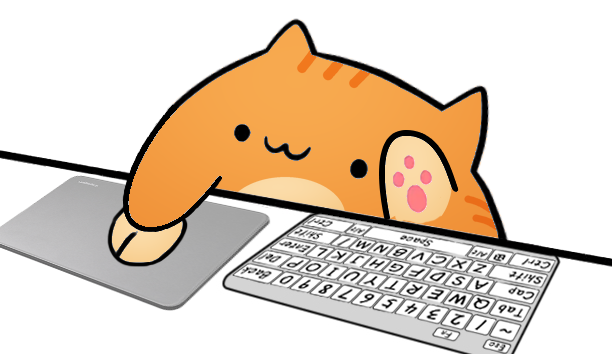
Make input readable
Show the controls, not only the cat.
A keyboard overlay helps viewers follow shortcuts, movement, typing, and clicks. Select a full layout when individual keys matter, or use a compact Style when the scene has less room.
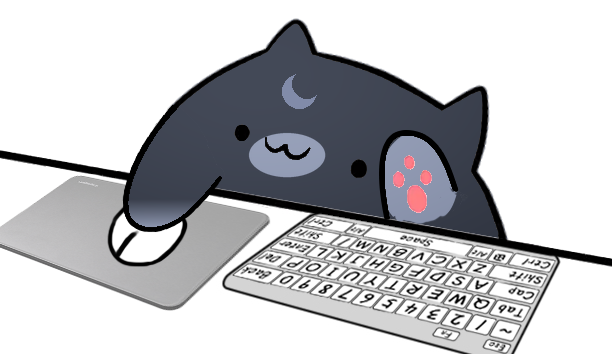
Match the broadcast
Choose the character separately from the hardware.
The character controls color and personality. The Style controls the visible keyboard, mouse, arrows, or gamepad. Every current character can use every current input Style.
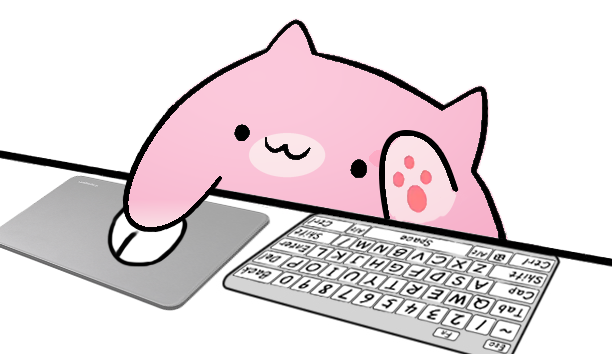
Keep it live
React while another application has focus.
The browser demo reacts while its page is focused. Overlay Cat Desktop is designed to keep capturing supported input while your game, editor, presentation, or tutorial is active.
From desktop to broadcast
How to use the Bongo Cat overlay in your stream
Overlay Cat keeps setup focused on one reusable local visual. You choose the model once, test the reaction, and add the resulting source to the scene software you already use.
Compare all Bongo Cat characters- 01
Try the interactive preview
Open the homepage Bongo Cat demo, press keys, click the mouse, and compare the available characters and hardware Styles before installing anything.
- 02
Get Overlay Cat Desktop
Visit the Desktop download page to check current macOS, Windows, and Linux build availability. Keep the app open while you use its local overlay source.
- 03
Add the local source to your scene
OBS users can follow the complete Bongo Cat OBS guide. TikTok creators can use the LIVE Studio Link source guide.
- 04
Test with the real content focused
Focus the game or application you will broadcast, confirm that the paws and controls still react, and make a short local recording before the stream begins.
A fair choice
Should you download Bongo Cat on Steam or Overlay Cat?
Choose the Steam game for collecting and desktop play
Choose the official Steam game when you want the taskbar cat, point accumulation, hats, cosmetics, chests, achievements, and the community built around that game. Overlay Cat does not attempt to reproduce its progression or marketplace experience.
Visit Bongo Cat on SteamChoose Overlay Cat for OBS and TikTok LIVE Studio
Choose Overlay Cat when the visible keyboard, mouse, arrows, or gamepad are part of the story you tell viewers. It is the better fit for a gameplay scene, coding stream, software walkthrough, keyboard tutorial, speedrun, or vertical LIVE where input context matters.
Check Overlay Cat downloadsYou do not have to treat them as mutually exclusive. Someone can enjoy the official Bongo Cat Steam game on the desktop and use a separate Overlay Cat input overlay when producing a stream. The right choice depends on whether your immediate goal is collecting or broadcasting.
Bring the reaction into the scene
Turn real input into a Bongo Cat stream overlay
Start with the browser preview, choose one of six characters and five Styles, then use Overlay Cat Desktop to carry the same reaction into OBS or TikTok LIVE Studio.