Streaming workflow guide
How to Show Keyboard and Mouse on Stream
A keyboard and mouse overlay makes invisible actions readable. This guide explains the complete workflow: choose what viewers need to see, capture supported input locally, connect the visual to broadcast software, protect sensitive keystrokes, and test the final scene before going live.
Published by Overlay CatJuly 31, 2026About 10 minutes
Quick answer
How do you show keyboard and mouse input on stream?
Run an input overlay application that can detect supported keyboard and mouse events outside the browser, choose a visual layout, and expose that layout to your broadcasting software. In Overlay Cat Desktop, select a Bongo Cat character and keyboard style, copy the local Browser Source URL, then add that URL as a Browser Source in OBS Studio. Position the source above gameplay or screen capture, verify transparency, and make a short test recording before the broadcast.
The important distinction is between capture and display. The desktop application captures input; OBS displays the resulting visual. A normal web page cannot reliably monitor keys while a game or another application has focus, so a browser-only keyboard tester is useful for diagnostics but is not enough for a complete live-stream workflow.
Do not display passwords, private messages, recovery codes, payment information, or sensitive shortcuts. Pause or hide the source before entering confidential data.
Step 1
Choose what the keyboard and mouse overlay should communicate
Start with the viewer's question. In a tutorial, the question may be “Which shortcut did the presenter use?” In a competitive game, it may be “How did the player time that movement?” In a creative stream, it may be “Was that change triggered by a click, a modifier, or a tool hotkey?” The right overlay makes the answer visible without becoming the main content.
Use a full keyboard for broad shortcut context
Full keyboard layouts work best when many letter keys, modifiers, and commands matter. Coding, video editing, 3D work, music production, and software training often need that context. Reserve enough room for the visual to remain readable after OBS scales the scene down to the final output resolution. A detailed keyboard that becomes tiny text is not useful.
Use a compact keyboard for games and vertical video
Compact layouts highlight a smaller control set and protect more space for gameplay, camera, chat, alerts, and captions. They suit action games, challenge streams, and TikTok LIVE scenes where the available frame is narrow. Focus on the actions viewers need to recognize rather than trying to show every possible key.
Use gamepad visuals for controller input
A controller is not a keyboard. If the stream uses sticks, triggers, a directional pad, and face buttons, choose a gamepad-specific visual. Matching the on-screen model to the physical device reduces interpretation time and helps viewers follow combos, movement, and timing.
The Bongo Cat overlay template collection pairs full, compact, arrow-key, mouse, and gamepad styles with common scene goals. Use it as a starting point, then adjust the character and placement for your own layout.
Step 2
Prepare the desktop input source
Install Overlay Cat Desktop for the operating system used by the streaming computer. Launch it before opening the final OBS scene so you can confirm that the selected character reacts to normal typing and mouse clicks. Choose one of the six characters, then select a full, compact, arrow-key, mouse, or gamepad style according to the scene plan.
Test normal activity rather than a single key. Type at your usual speed, hold a modifier, click rapidly, and switch to the game or application that will be shown on stream. The preview should continue to react when another application is active. If only the browser tester responds, you are still testing browser events rather than the Desktop capture path.
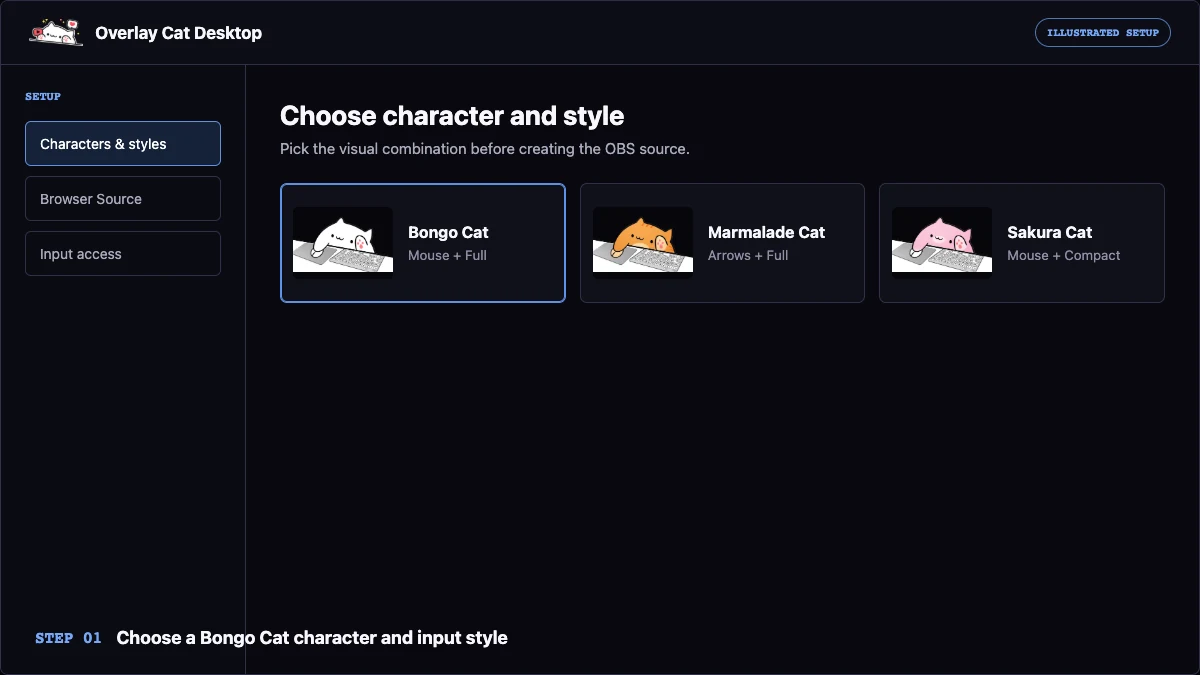
Keep the app running during the stream. The local source depends on the Desktop process for the visual and input state. If your security software or operating system asks for input-monitoring or accessibility permission, review the request and grant only the permission required for the app to function. Restart the app after changing system permissions when necessary.
Step 3
Add the keyboard and mouse overlay to OBS Studio
In the Overlay Cat Desktop output area, copy the local Browser Source URL. Open the target OBS scene, select the plus button in Sources, choose Browser, and create a source with a clear name such as “Overlay Cat Input.” Paste the local URL into the URL field and set the source dimensions to match the intended overlay canvas.
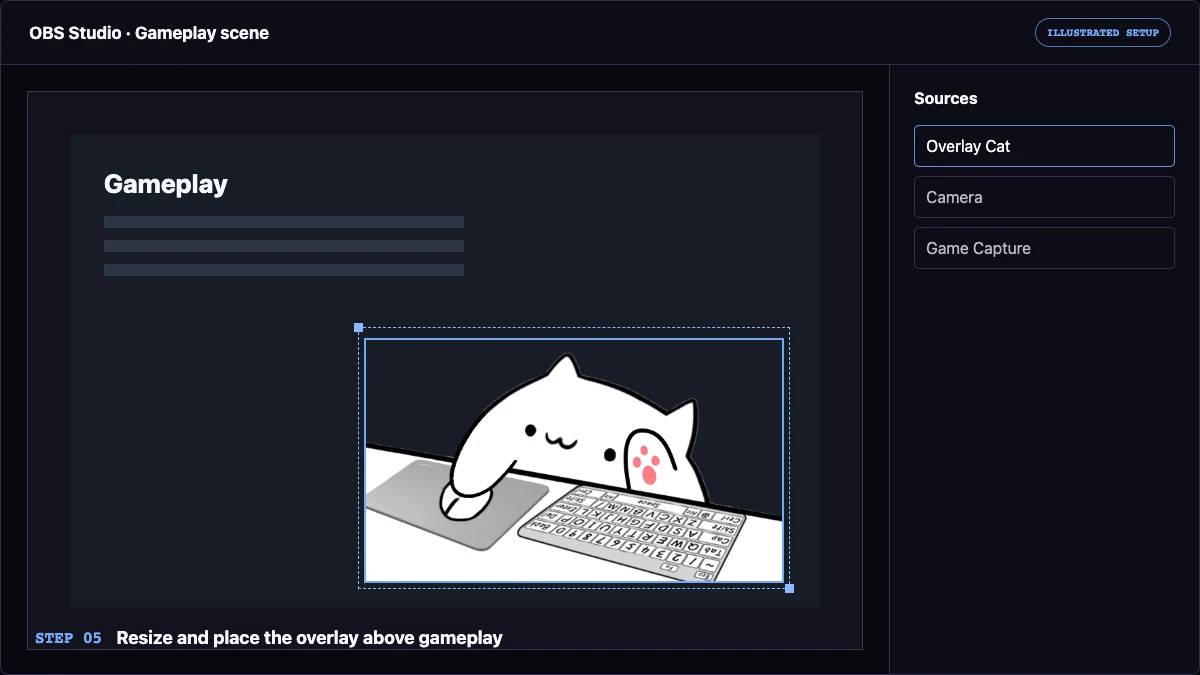
Place the Browser Source above gameplay, display capture, or window capture in the Sources list. OBS layers are drawn from bottom to top, so a source below the main capture can be hidden even when its input is working. Use the preview handles to scale the overlay while preserving its aspect ratio. Avoid stretching the cat wider or taller than the original design.
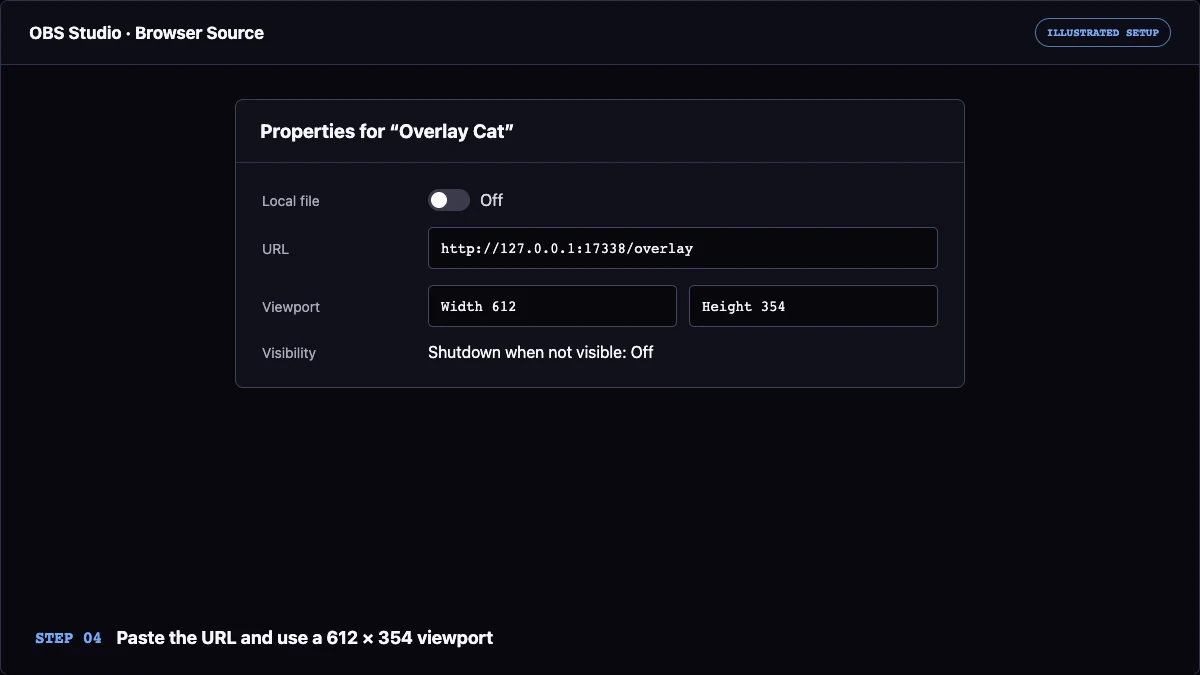
Make a thirty-second recording with the same game, screen capture, webcam, captions, and alerts planned for the broadcast. Watch the recording at normal viewer size. This catches source-order mistakes, unreadable scaling, unexpected background color, and UI collisions more reliably than staring at a large OBS preview.
For exact source settings and screenshots, follow the dedicated Bongo Cat overlay for OBS guide. TikTok LIVE Studio uses a similar local link concept but needs a separate vertical-layout check; the TikTok LIVE Studio guide covers that workflow.
Step 4
Protect passwords and sensitive keyboard input
An input overlay is designed to reveal actions, so privacy must be part of the scene plan. Decide in advance when the source should be hidden. Account login, two-factor authentication, password managers, private chat, payment screens, terminal secrets, API keys, recovery codes, and private administrative tools are all reasons to disable or switch away from the overlay.
Create an OBS scene or source toggle that removes the input overlay immediately. Practice the transition before going live and give it a memorable hotkey that does not conflict with the applications you demonstrate. When possible, prepare accounts and open required tools before the broadcast so fewer sensitive actions happen while viewers are present.
Remember that hiding typed text inside an application does not necessarily hide the physical keys shown by an overlay. A password field may display dots while the stream visual still reveals the sequence of keys. Treat the overlay as a camera pointed at the keyboard: if the action should not be public, turn the source off first.
Step 5
Design for contrast, hierarchy, and platform safe zones
Put the main content first. The keyboard and mouse overlay should be large enough to understand but smaller than gameplay, screen capture, or the presenter. Check both light and dark moments in the source content. A cat that disappears against a bright desktop or a dark game scene needs a different placement, character palette, or subtle backing treatment.
Keep distance from subtitles, game HUD elements, chat, donation alerts, and platform controls. In a vertical TikTok LIVE layout, leave room for mobile interface overlays and comments. In a wide OBS layout, use negative space beside gameplay or below a desktop capture rather than covering an information-dense corner.
Consistency matters across scenes. If the overlay moves between gameplay, intermission, and tutorial scenes, preserve a predictable size and alignment where possible. Viewers learn where to look, and clips feel more cohesive. A template can establish those rules before you duplicate the source across a scene collection.
Troubleshooting
What to check when the overlay does not react
The cat appears but input does not change
Confirm that Overlay Cat Desktop is running, the correct input style is selected, and the app has the operating-system permission required to observe supported input. Test inside the Desktop preview first. If the preview does not react, the issue is before OBS and changing Browser Source settings will not fix it.
The Desktop preview reacts but OBS does not update
Refresh the Browser Source, verify that the local URL is complete, and confirm that OBS and Overlay Cat are running on the same computer. Check source visibility and ordering. If the source was copied from another machine or scene collection, replace the URL with the current local value.
The overlay works until a game becomes active
Some games, elevated applications, security tools, and operating-system environments handle input differently. Compare app privilege levels and review system permissions. On Linux, desktop session and input security rules can affect global capture. Test the exact game and display mode before scheduling a live broadcast.
The visual is blurry or too small
Increase the Browser Source canvas size and scale down in OBS rather than rendering a tiny source and enlarging it. Preserve the original aspect ratio. Judge quality from a test recording at the final stream resolution, not only from the OBS editing canvas.
Before you go live
Keyboard and mouse overlay checklist
- The Desktop preview reacts while the target game or application has focus.
- The Browser Source URL is local, current, and loaded in the correct scene.
- The overlay is above the main capture in the source order and has a transparent background.
- Full or compact keyboard style matches the information viewers actually need.
- The source does not cover subtitles, HUD elements, chat, alerts, or mobile safe zones.
- A privacy scene or source toggle is ready before passwords or sensitive data appear.
- A test recording confirms readable scale, clean motion, and stable input response.
Build the stream source
Show keyboard and mouse input with a reactive Bongo Cat
Overlay Cat Desktop is available for macOS, Windows, and Linux. Choose a character, select the input layout, and connect the local source to your broadcast scene.