Overlay Cat transparency guide
How to Make a Bongo Cat Overlay Transparent in OBS
A Bongo Cat overlay works best when the cat floats directly over gameplay, video, or a desk camera without a solid background box. This guide explains how Overlay Cat keeps its output transparent in OBS, how to recognize preview-only backgrounds, and how to fix checkerboard, black, or white output.
Quick answer
How do you make a Bongo Cat overlay transparent in OBS?
Run Overlay Cat Desktop, copy the Browser Source URL that ends at /overlay, and paste it into an OBS Browser source with Local file off. Use a 612 x 354 viewport and do not add ?preview=1. OBS renders the page with a transparent background, so the cat can sit directly above gameplay or video.
Overlay Cat Desktop includes a diagnostic preview that adds a checkerboard so transparency is visible. That is for checking the layer inside the app, not for the broadcast source.
Background
How overlay transparency works
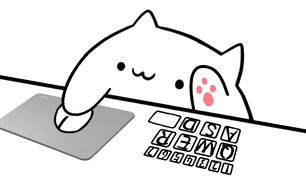
Overlay Cat composes PNG Sprite layers for the character, hands, keyboard, mouse, arrow keys, or gamepad. The page itself has a transparent background, and OBS Browser Source honors that transparency by default. The result is a small floating reaction layer rather than a rectangular video box.
This is different from chroma key. You do not need to place a green screen behind the cat or remove a color. The page already produces alpha transparency, which means the source can sit above gameplay and show only the cat and hardware layers.
Step 1
Use the production URL, not the preview
In Overlay Cat Desktop, find Browser Source URL and use the copy button. The address normally begins with http://127.0.0.1:17338/overlay. It is the production address for OBS and TikTok LIVE Studio. A separate preview address or query parameter exists for debugging and is not intended for broadcast.
Copy the URL every time you update Desktop or the local port changes. Typing an older address can produce a blank source even when the overlay itself is working.
Step 2
Configure the OBS Browser Source
In OBS, select the target scene and add a Browser source. Name it something like Overlay Cat, leave Local file off, and paste the URL. Start with a width of 612 and a height of 354. OBS applies transparent Browser Source CSS by default, so no chroma key or color removal is needed.
If you scale the source in the OBS canvas, resize from a corner and preserve the 612:354 ratio. The cat, hands, and hardware are drawn on a full-canvas sprite, so a different ratio can stretch the layers even when transparency is working correctly.
Step 3
Verify transparency in the scene
After adding the source, place it above gameplay or video and look at the OBS preview. The cat should appear to float over the content below it. If the source is above a checkerboard or an empty background in the preview, that is expected: OBS draws transparency as a checkerboard pattern when there is no content beneath the source.
In the live scene, the content below the source fills the transparent areas. If you see a solid black or white rectangle, check the URL, remove any preview query, and confirm that no custom CSS in the Browser Source properties is forcing an opaque background.
Step 4
Position and crop without a background
Select the source in OBS and drag the red bounding box to move it. Resize from a corner to avoid stretching the sprite. If you need to remove unused space, hold Alt on Windows/Linux or Option on macOS while dragging an edge to crop. Cropping does not change the underlying transparency; it simply trims the visible frame.
Green handles indicate cropped edges, while red handles show the uncropped boundary. If the overlay should be reusable across scenes, add the existing source to another scene instead of creating a new Browser Source. Scene items can have different positions and transforms while sharing the same URL and settings.
Troubleshooting
Fix checkerboard or solid backgrounds
The overlay shows a checkerboard pattern
The URL probably contains ?preview=1 or points to a preview-only address. Copy the production Browser Source URL from Desktop and replace it in OBS. A checkerboard pattern in the OBS preview can also be normal when the source has no content below it; place another source beneath the cat to confirm.
The overlay shows a black or white rectangle
Confirm the page background is transparent and that no custom CSS in Browser Source properties is setting an opaque color. Remove any browser extension that might inject styles into the local page. Then use Refresh cache of current page and check the scene again.
Transparency disappears after scaling
Scaling should not remove alpha. If the source appears boxed after scaling, reset the transform and resize from a corner while preserving the aspect ratio. Also verify that the source is above, not below, the content it should float over in the Sources list.
TikTok LIVE Studio
Transparency in TikTok LIVE Studio
TikTok LIVE Studio Link sources use the same local URL and preserve the page transparency. Add the URL copied from Desktop as a Link source, keep the app running, and check the LIVE preview. A solid background there usually has the same cause: a preview query, an outdated URL, or a custom CSS style.
See the TikTok LIVE Studio setup guide for the exact Link source workflow and vertical placement advice.
Before going live
Transparency checklist
- Overlay Cat Desktop is running and displays the production Browser Source URL.
- The OBS Browser Source uses Local file off and the exact current URL.
- No preview-only query parameter appears in the source URL.
- The viewport uses 612 x 354 or another matching aspect ratio.
- The source sits above gameplay or video in the OBS Sources list.
- Custom CSS does not force an opaque background.
- The cat appears to float over content in the live preview.
- A short test recording confirms the transparency during real input.
Build your scene
Test the transparent overlay before going live
Copy the production URL, add the source above your content, and confirm the cat floats over the scene. If you still see a background, remove the preview query and refresh the Browser Source.