Overlay Cat creator guide
How to Make a Bongo Cat Overlay for Your Stream
Making a Bongo Cat overlay does not require drawing, coding, or splicing PNG Sprite frames by hand. This guide walks through the four decisions that matter: choosing a character, choosing an input style, testing the reaction, and connecting the finished source to OBS Studio or TikTok LIVE Studio.
Quick answer
How do you make a Bongo Cat overlay?
Open Overlay Cat Desktop, choose one of the six Bongo Cat characters, pair it with a full keyboard, compact keyboard, arrow-key, mouse, or gamepad style, and confirm the reaction in the preview. Copy the local Browser Source URL shown by Desktop. In OBS Studio, add a Browser source with that URL. In TikTok LIVE Studio, add the same local URL as a Link source. The app keeps the overlay transparent and reacts to system-level keyboard, mouse, and gamepad input while another application has focus.
It normally begins with http://127.0.0.1:17338/overlay, but Overlay Cat may choose a different local port when that port is in use. Copy the address instead of typing it.
Preparation
What a Bongo Cat overlay needs
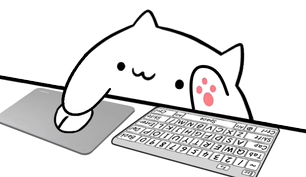
A Bongo Cat overlay is more than a picture of a cat. It is a small interactive layer that receives input events and swaps character, hand, and hardware frames to make the reaction visible. Four parts work together:
- The character. Six cats are available, each with its own palette and expression set.
- The input style. The same cat can use a full keyboard, compact keyboard, arrow-key, mouse, or gamepad layout.
- The reaction engine. The browser preview reacts to page events, while Overlay Cat Desktop reacts to system-level input.
- The broadcast source. OBS uses a Browser Source; TikTok LIVE Studio uses a Link source.
Separating the character from the input style is the most important design decision. A streamer can switch from Classic Bongo Cat to a darker Luna Cat without changing the keyboard behavior, and can switch from a full keyboard to a gamepad without replacing the whole scene.
Step 1
Choose a Bongo Cat character
Start with the visual because it sets the mood of the overlay. Classic Bongo Cat is white and reads well on almost any scene. Marmalade Cat adds a warm orange tabby look, Sakura Cat uses a soft pink palette, Luna Cat is a midnight cat with a moon marking, Misty Cat is a calm gray, and Sky Cat brings a pastel blue tone.
The character should support the scene, not fight it. A bright cat is easier to see over dark gameplay, while a pastel cat can fit a soft desk-cam setup. Test the character at the size you plan to stream: a choice that looks charming in a large preview can disappear when placed in a small corner.
Compare every character on the Bongo Cat characters page and use the homepage preview to see how each cat reacts to the same input before installing anything.
Step 2
Choose an input style
Overlay Cat offers five style families: Mouse + Full, Arrows + Full, Mouse + Compact, Arrows + Compact, and Gamepad. The full styles expose more keys and are useful when shortcut context matters. Compact styles focus on a smaller set of controls and fit busy or vertical scenes. The gamepad style is the right choice for controller streams because it keeps buttons, triggers, and directional input readable.
For a coding or software tutorial, choose Mouse + Full so modifiers, shortcuts, and clicks are all visible. For a fighting game, choose Gamepad so the audience can follow combo inputs. For a TikTok LIVE scene, choose a compact style and check the layout on a phone-sized preview.
You can change styles later without rebuilding the source. The Desktop app follows the active selection, and the same local URL continues to work.
Step 3
Test the input reaction before building the scene
The homepage preview is the fastest way to test. Press supported keys, click left or right, move through arrow controls, or connect a supported gamepad and the cat reacts while the page has focus. This preview is page-scoped for privacy: it cannot monitor other applications, and the input is processed in the browser rather than stored as an input history.
Use the browser input overlay tester when you need more detail about event names and mouse buttons. Then install Overlay Cat Desktop and repeat the test there. If the cat reacts in Desktop, input capture works and any problem you see later belongs to the OBS or TikTok LIVE Studio connection, not the input source.
Step 4
Connect the finished overlay to your broadcast software
In OBS Studio, select the target scene, add a Browser source, leave Local file off, and paste the URL copied from Overlay Cat Desktop. Start with a 612 x 354 viewport or another size with the same aspect ratio. The page background is transparent, so the cat can sit above gameplay or video without a solid box.
In TikTok LIVE Studio, add the same local URL as a Link source. Keep Overlay Cat Desktop running while the LIVE is active. See the OBS Studio setup guide or the TikTok LIVE Studio setup guide for exact source properties and screenshots.
Step 5
Place the overlay without covering the stream
Treat the cat as an input instrument. It should be large enough for viewers to read the hands and hardware, but it should not cover health bars, captions, code, chat, or the center of the action. Bottom corners work well for landscape gameplay. A compact style can sit below a webcam, while a full keyboard usually needs a wider uninterrupted edge.
In OBS, select the source and drag its red bounding box to position or resize it. Hold Alt on Windows/Linux or Option on macOS while dragging an edge to crop. Preserve the 612:354 aspect ratio so the cat and hardware do not stretch. In TikTok LIVE Studio, test on a phone-sized preview and keep the overlay away from caption-safe zones and interactive LIVE buttons.
Security and privacy
Protect passwords and sensitive keyboard input
A system-level input overlay is powerful, which means it can also reveal information you do not want on stream. Before typing a password, credit card number, or private message, stop typing or switch the overlay to a safe state. Overlay Cat processes input for the reaction layer and does not publish a key history, but any visual that repeats your keystrokes can still expose a password if the camera or source remains visible.
Make a habit of testing with a dummy password before going live, and plan when you will pause the overlay during a broadcast. The privacy benefit of an input overlay only lasts when the streamer controls what reaches the scene.
Before going live
Bongo Cat overlay checklist
- Choose a character that stays readable at the intended stream size.
- Choose an input style that matches the content: full, compact, arrow, mouse, or gamepad.
- Confirm the browser preview and Overlay Cat Desktop both react to supported input.
- Copy the exact local URL from Desktop and keep the app running.
- Add the URL as a Browser Source in OBS or a Link source in TikTok LIVE Studio.
- Keep transparency on and remove any preview-only query parameter.
- Position the overlay outside captions, chat, and important gameplay UI.
- Plan a safe moment for passwords and other sensitive input.
Build your scene
Start with a preview, finish with a stream source
Test the interactive cat in your browser, compare characters and input styles, then use Overlay Cat Desktop to carry the selected reaction layer into OBS or TikTok LIVE Studio.